What you need
- Windows (the full download includes Python), or macOS or Linux with Python 3.10 or newer.
- Any current browser. Quill runs on your computer and opens in the browser.
Step by step
Install Quill and start a book
Unzip the download and double-click
install_quill.baton Windows (no admin rights needed). On a Mac or Linux, runsh start_gorgon_quill.shin the folder. Quill asks for a working title, and your name if you want it on the title page.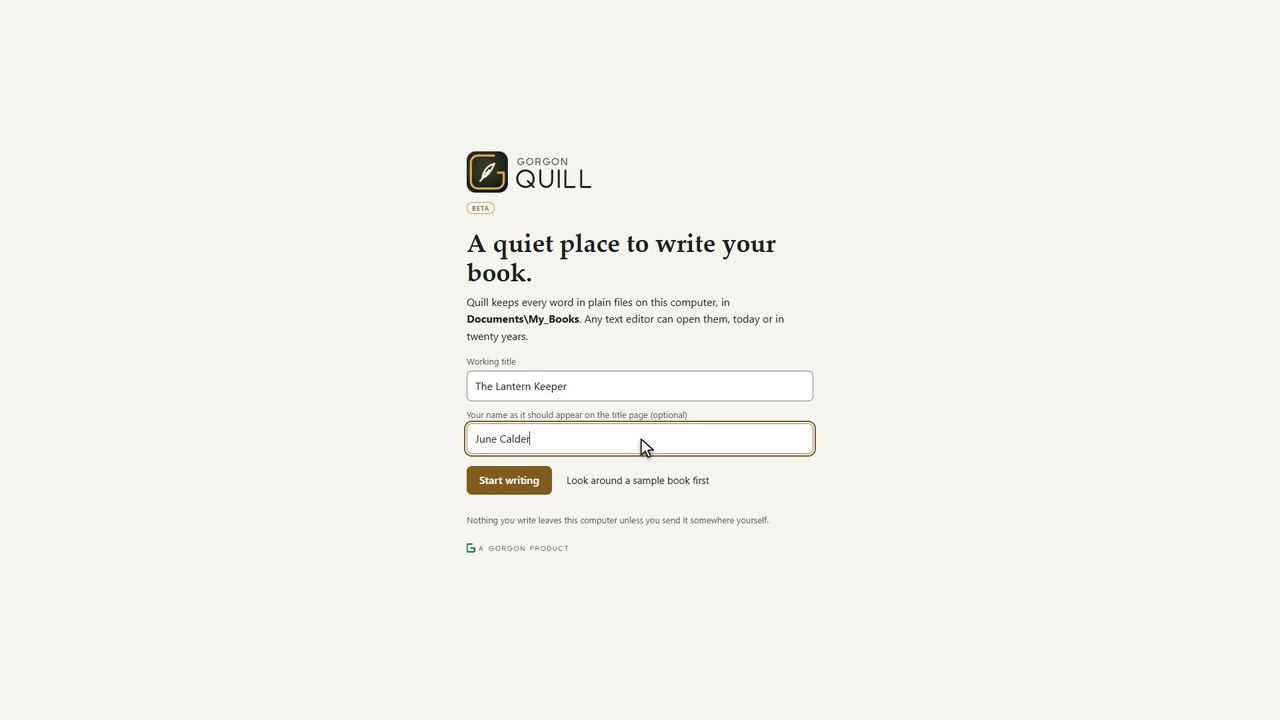
A title, your name if you like, and Start writing. Bring your chapters across
Quill has no Scrivener import. Export your manuscript from Scrivener as plain text or Markdown, then make one chapter at a time in Quill with New chapter and paste the text in. Pasting from Word or Google Docs keeps italics and bold.
Plan on the corkboard
The corkboard shows each chapter as a card with a note and a status. Drag the cards to change the order. The notes live in
book.json, never inside your text.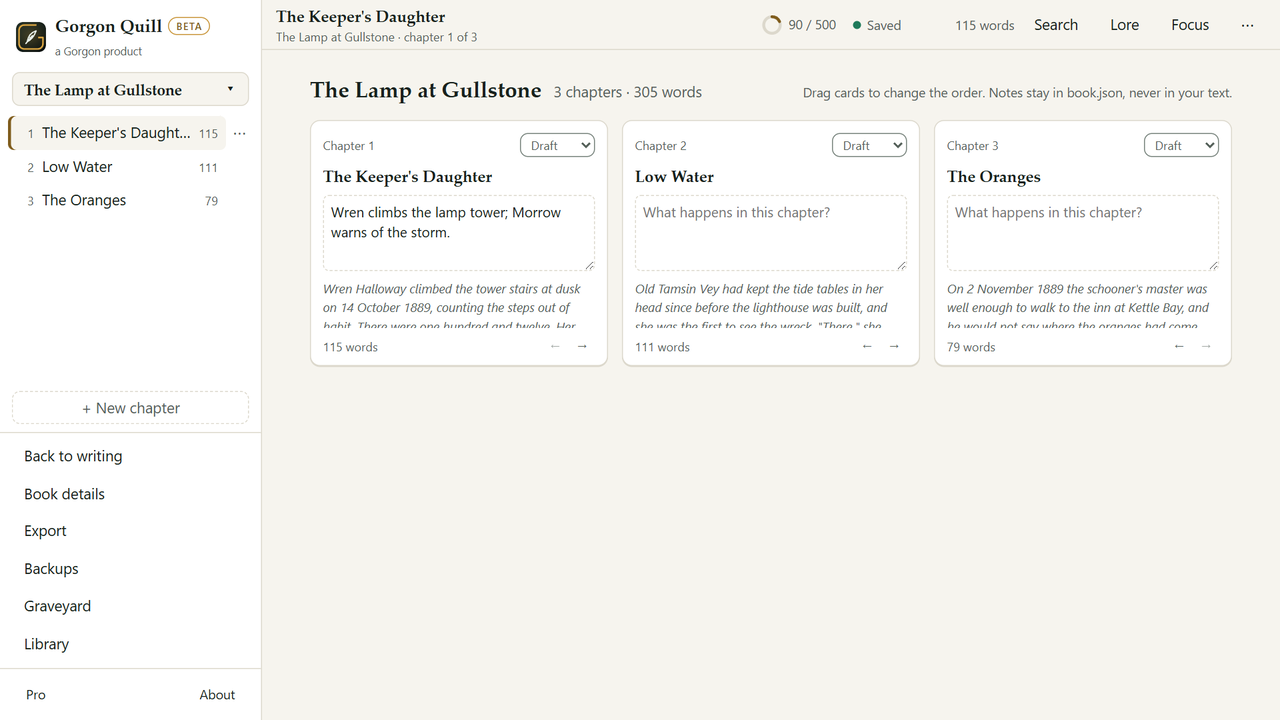
The corkboard. Drag a card to move a chapter. Look at the files
Open
Documents\My_Booksand your book's folder. One text file per chapter, numbered in reading order (01 Chapter One.md), plusbook.jsonfor notes and a.backupsfolder.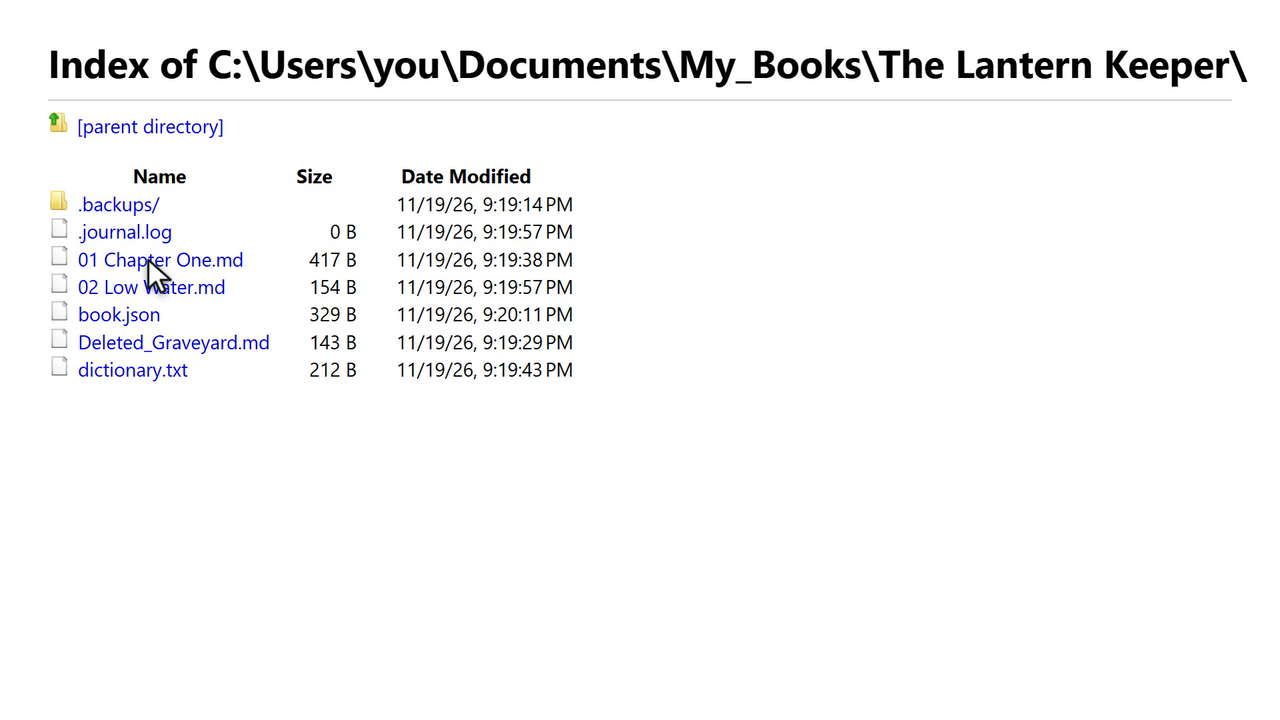
The book on disk: one file per chapter. Open a chapter anywhere
Open a chapter in Notepad or any editor and it is just your words. Stars around a word make italics, and three stars on their own line make a scene break. If you stop using Quill one day, your book is still right there.
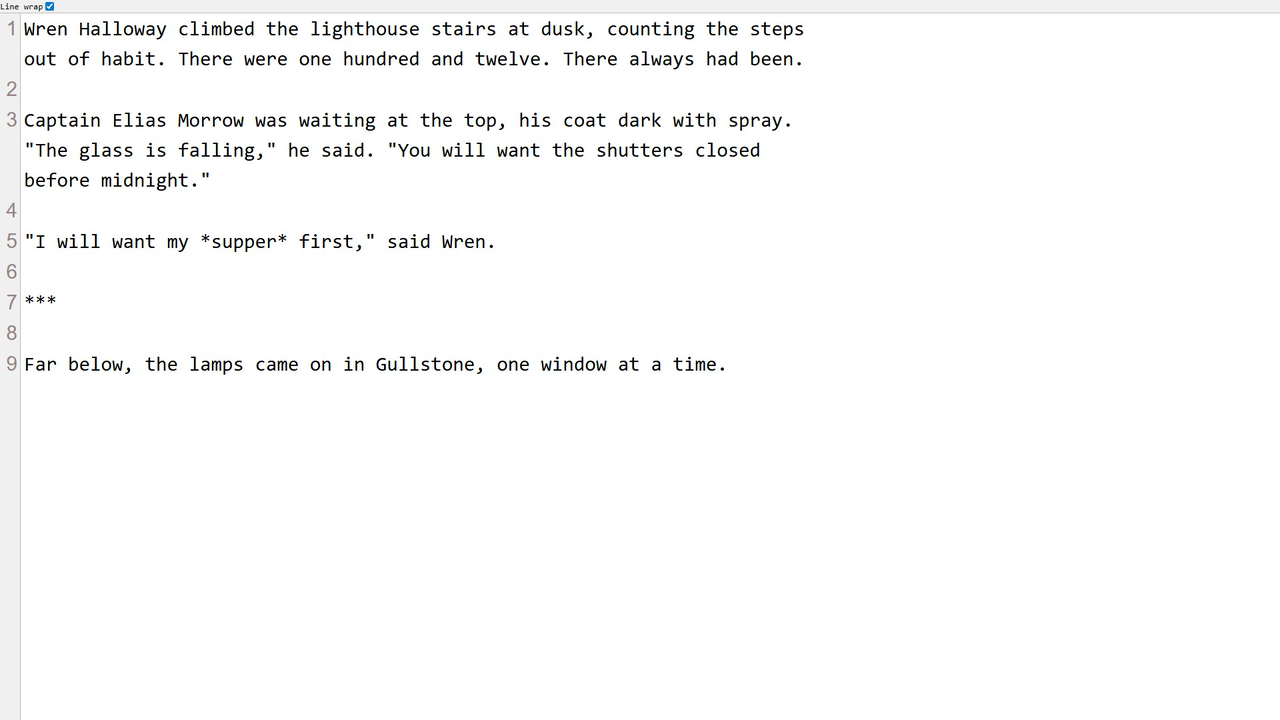
The same chapter in a plain text editor.


The same steps, moving
What Quill has, on the free plan
- Chapters you can rename, reorder and delete (a deleted chapter can be restored).
- A corkboard, search across the whole book, and replace (a backup is made first).
- Automatic backups, and a graveyard for paragraphs you delete.
- Focus mode, a daily goal, and a word target with a finish date.
- A Lore panel listing the people, places and dates you have named, with continuity checks.
- Export to plain text, Markdown and a web page. Pro adds EPUB, Word and a print-ready PDF.
What it can't do
- Quill is in beta. Saving, backups, the graveyard and the plain files are finished and tested; some screens and the look of exported books may still change.
- There is no Scrivener import, and Quill does less than Scrivener: the tools are the ones in the list above. The Library panel finds public-domain books and reference text online, and only when you turn it on.
- There is no syncing between computers. Your book is a folder; you copy it yourself.
Questions people ask
Why plain text files?
A novel can take years. Plain files outlast every app you write it in, open in any editor, and back up like any other folder.
Where does Quill keep chapter notes?
In book.json inside the book's folder, so your chapter files hold only your words.
Does Quill need the internet?
Not for writing. The Library panel is off until you turn it on, and it is the only part of Quill that goes online.
Try it yourself
A free offline writing app for novelists. Your books are plain text files in your Documents folder. No cloud, no lock-in; the Free edition stays free and Pro is a 12-month key. A Scrivener alternative that keeps everything local.